Azure Storage Account Connector Documentation
Microsoft blocks ordinary users from consenting to the Abacus.AI app on their own. Before anyone else in your tenant can connect Azure Storage, a Microsoft Entra admin must create the connector once and tick the "Consent on behalf of your organization" checkbox on Microsoft's Permissions requested screen, then click Accept.
This is not the same as the Grant admin consent button in the Entra admin center. Once the admin has ticked the checkbox, every user in that tenant can sign in and create their own connector freely — until then Microsoft stops them with "Need admin approval".
See Microsoft Entra Tenant Consent for the full walkthrough.
Prerequisites
- Before you begin, ensure you have access to the Storage account.
- Users must have at least the Storage Blob Data Reader role on the blobs they need to access.
- User has necessary permissions to create connectors.
Connect your Azure Storage Account to Abacus.AI
Abacus.AI supports integration with Microsoft Azure Storage, allowing you to use data directly from your Azure Storage Account for model training and other applications. The Azure Storage connector enables flexible data access from containers and blobs.
- Navigate to the Abacus.AI Connected Services Dashboard.
- Click
Add New Connector. - Select
Azure Storagefrom theSelect a Servicepopup. - Enter the Storage Account Name you wish to connect.
- Optionally, enter the Blob Name you want to access.
- Click
Connect Azure Storage.
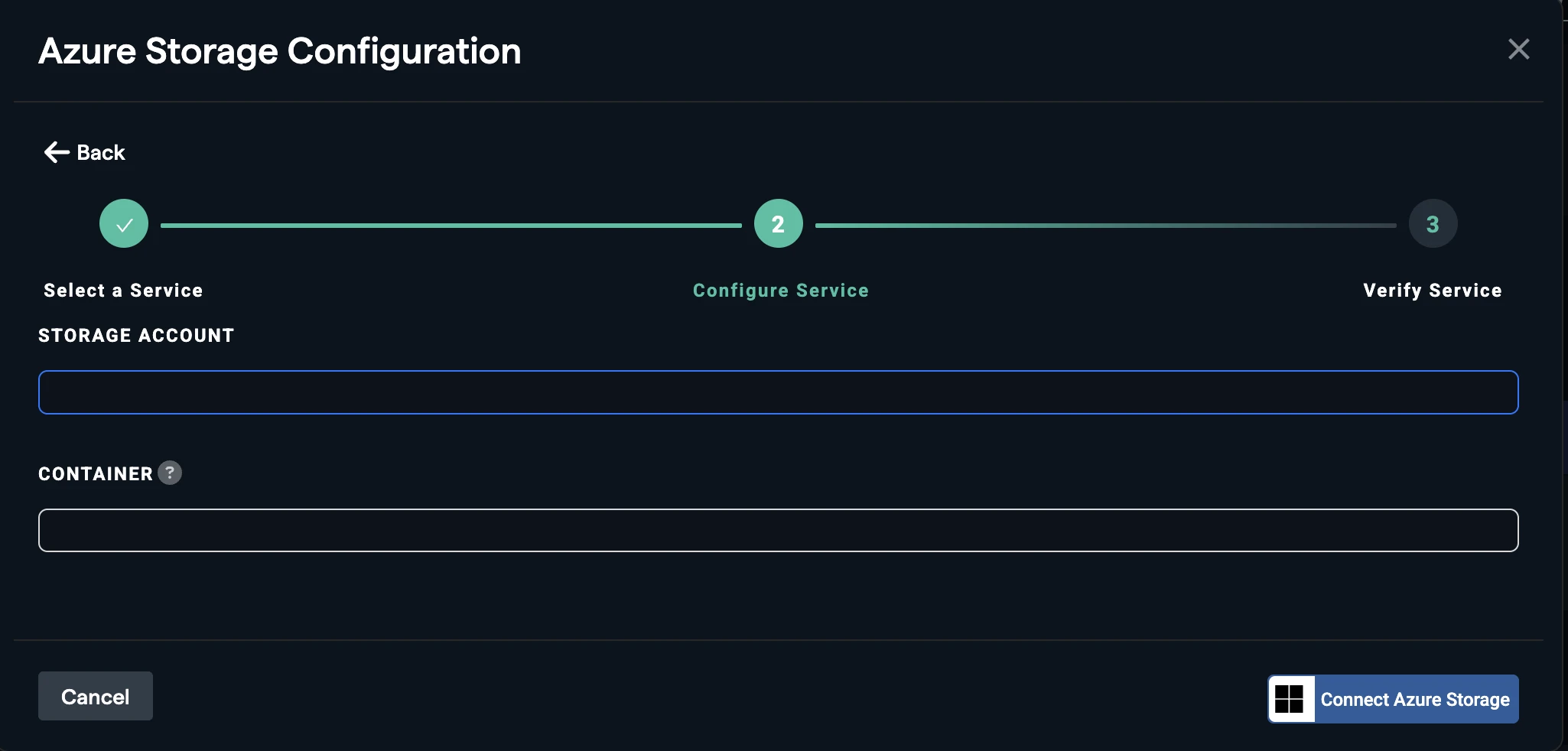
- After a successful connection, the Azure Storage Account connector will appear under Application Connectors with the status
ACTIVE.
How to Use the Azure Storage Account Connector
Once the Azure Storage Account connector is set up, you can use it to fetch data to create dataset.
- Create a new project and select the use case, then go to the "Datasets" tab and click "Create Dataset".
- Click on "Create New" and name the dataset.
- Choose "Read from External Service" and select your Azure Storage Account connector under "Application Connectors".
- Navigate and select the file or folder that you would like to import.
- Click on create
ADD DATASET.