Oracle Fusion administrator setup
An OCI IAM identity domain administrator, together with an Abacus.AI workspace administrator, completes these steps once for the whole workspace. Every Oracle Fusion customer has its own identity domain and Fusion pod, so there is no shared Abacus.AI OAuth application: you register your own confidential application and register its credentials as a config connector, so that end users can then sign in with their own Oracle Fusion login.
Without this setup, users cannot connect and see "Oracle Fusion organization-level setup is incomplete".
Step 1: Collect your identity domain and Fusion URLs
In the OCI Console, go to Identity & Security → Domains and open the identity domain your Oracle Fusion users sign in to. Copy the Domain URL shown on the domain overview page. It looks like:
https://idcs-<id>.identity.oraclecloud.com
Then note your Oracle Fusion Applications URL, the host your users open Fusion on:
https://<pod>.fa.ocs.oraclecloud.com
Abacus.AI only accepts an https URL whose host ends with .identity.oraclecloud.com for the identity domain, and with .oraclecloud.com for the Fusion URL. Anything else is rejected with "A valid https URL on a *.identity.oraclecloud.com host is required". Enter the bare host with no path, port, query string or embedded credentials; Abacus.AI stores https://<host> only.
Step 2: Create the confidential application
In the same identity domain, go to Integrated applications → Add application, select Confidential Application and click Launch workflow.
-
Name — something recognizable, for example
Abacus.AI. -
Continue to OAuth configuration and choose Configure this application as a client now.
-
Under Allowed grant types, check Authorization code and Refresh token.
-
Redirect URL — enter exactly:
https://abacus.ai/oauth/callback -
Leave Client type set to Confidential.
Abacus.AI requests the offline_access scope and expects OCI IAM to return a refresh token. If the Refresh token grant is not enabled, users can sign in but the connection fails immediately with "Oracle Fusion did not return a refresh token. Ask your administrator to enable the Refresh Token grant on the confidential application."
Step 3: Grant the Fusion Applications resource scope
Still on the OAuth configuration page, scroll to Token issuance policy, click Add resources, then Add scope, and select the Fusion Applications resource application for your pod together with the scope your users need.
The resulting scope value is the resource's primary audience immediately followed by the scope, for example:
https://<pod>.fa.ocs.oraclecloud.com:443urn:opc:resource:consumer::all
Copy it exactly as the console displays it, including the :443 and with no separator before urn:opc:. You will paste this value into the Fusion Scope field in Step 6.
Click Finish to create the application.
Step 4: Activate the application and copy the credentials
A newly created confidential application is deactivated. On the application's page:
- Copy the Client ID and Client secret from the General Information panel of the OAuth configuration tab. Store the secret somewhere safe; you will need it in Step 6.
- Click Activate and confirm.
Step 5: Check the Fusion roles of your users
The connector calls the Fusion REST API as the signed-in user, so it can only see what that user's Oracle Fusion roles allow. In Oracle Fusion, use Tools → Security Console or your usual provisioning process to confirm each user has the job and data roles covering the resources they will query, for example payables invoices, suppliers or HCM worker data.
A user whose roles do not cover a resource still connects successfully but gets HTTP 403 from that resource. Grant the role rather than widening the OAuth scope.
Step 6: Create the config connector in Abacus.AI
-
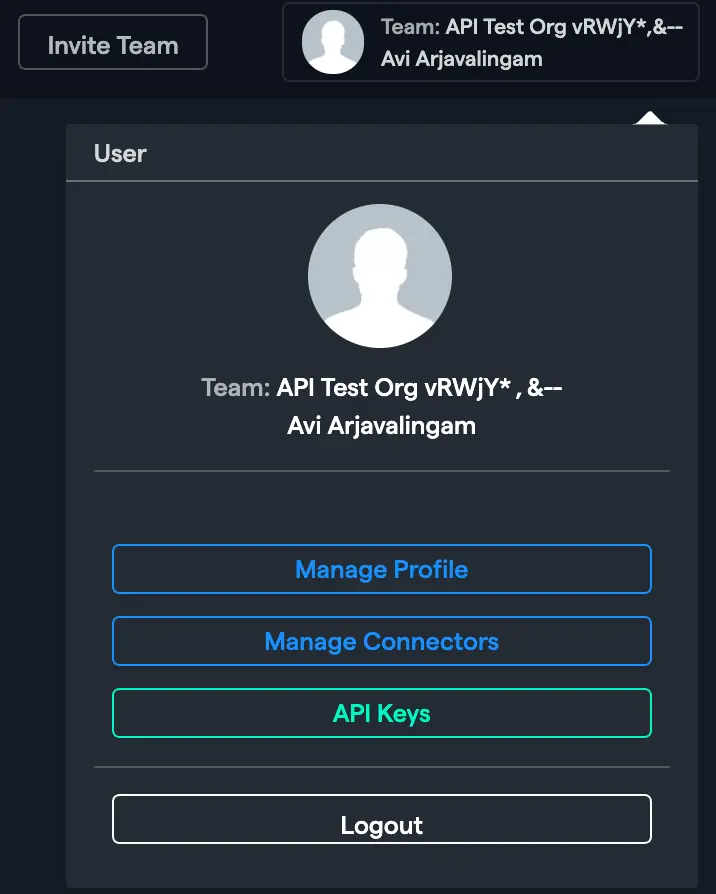
Navigate to the Abacus.AI Connected Services Dashboard. You can also click your profile picture in the top right corner and select "Manage Connectors".

-
Click "Add New Connector" and choose "Oracle Fusion" from the "Select a Service" popup.
-
Fill in the details you collected in the previous steps:
Field Required Description Connector Name No A name to identify this Oracle Fusion organization-level connection. Defaults to Oracle Fusion Config Connector - <org id>.Identity Domain URL Yes The OCI IAM identity domain URL from Step 1, e.g. https://idcs-<id>.identity.oraclecloud.com.Fusion URL Yes Your Oracle Fusion Applications URL from Step 1, e.g. https://<pod>.fa.ocs.oraclecloud.com.Client ID Yes Client ID of the confidential application from Step 4. Client Secret Yes Client secret of the confidential application from Step 4. Fusion Scope Yes The Fusion Applications resource scope from Step 3, e.g. https://<pod>.fa.ocs.oraclecloud.com:443urn:opc:resource:consumer::all. Abacus.AI addsopenidandoffline_accessto it automatically. -
Click "Create".
The Oracle Fusion config connector is inherently config-only — it stores credentials for user connections and does not itself connect to Oracle Fusion, so there is no "Config Only" toggle to set. You can edit it later from the Connected Services Dashboard if the URLs, credentials or scope change. Users who connected before a change must reconnect for it to take effect.
Next step
Users can now connect Oracle Fusion in ChatLLM Teams.